Showing posts with label Computer. Show all posts

12 September 2018

How To Turn Your Low End PC To Gaming PC


Personal Computer or PC is probably one of the most used gadgets in the twenty first century. We used it for almost everything, from writing, drawing, sharing, and also gaming. Yes, almost all teenagers that live and born in the twenty first century, have at least a laptop or desktop PC with a video game inside it. And we can all agree on the fact that video game become more popular. Everyone from all ages played it, but there's just one problem. Today's video game have a very demanding requirement, you will need a high-end PC with a god level of specification in order to play smoothly and without any problem at all. And unfortunately not everybody have that kind of PC.

Of course you can just play indie games that have a pixel graphics, which does not requires a lot of resources. But if you did not satisfied wit it or maybe you think that pixel art games are boring, and you insist want to play a 3D games in your low end PC. Then you should read this article.

Optimize Your PC

There are lots of ways to optimize your Low end PC for gaming in the internet, but not all of them are working. So I've decided to try every single tips and trick that I can found on the internet, and write the working ones in this article.

Tips 1: Use Game Booster
Game Booster

The first tips, is to use the game booster software. Just like it's name, game booster is a software that will close all of the software or apps that run in the background and clean your PC's memory. Allow you to increase the FPS, and the game will run smoothly. There are not so many game booster out there. The only two that I know was Iobit and Razer Cortex, maybe there's more but those two are the only game booster software that really work.


Tips 2: Lower The Game Resolution
Game Settings

Settings are the most important part in the game. If this thing doesn't exist, then gamers will lose their mind. Anyway, there are lots of things that you can change in setting of a video game. Like resolution, sound, etc. If you can change those things to the lower level then you can hit 60 fps. But remember this tips doesn't always work, it's actually depends on your CPU.


Tips 3: Close All Background Apps
Background Apps

Every computer or laptop have a software in it, and just like most software. They often run in the background, turning your PC from a cheetah to a snail. So how did you solved it? Well, there's only one solution to this. You have to close all software that run in the background, the easy way to do this is download the cleaner software like Ccleaner for example (Game Booster also worked, because cleaner software and game booster are basically the same). What about the hard way? Well, you can open task manager, right-click on the software that you want to close, and then click end task.


Tips 4: Upgrade Your PC's Hardware
PC Hardware

This one is for rich people only. Because today's computer hardware have a very high performance and remember, with great power comes great price. But luckily not all PC's hardwares are expensive, and that is the good side of building your own PC. Instead of spending your money on expensive gaming PC or laptop, you can build your own PC and choose or planned which hardware that suits your budget. And you can save your money to buy a game!


Tips 5: Update Your Graphics Driver
Graphics Driver Update

Graphics card is the most important part of the computer. Because if there are no graphics driver, our computer will be full with green text and we must input a really complicated commands to run a program. Yes, it is true that graphics card help us a lot these days. But we also have to help the graphics card by updating them. Of course it's not going to break it, if you didn't update it. But it will help you play a video game in 60 fps. And it's easy to do it, just search your graphics card on the internet (of course) and find the latest driver, or you can go to the official website of the graphics card that you have (if you have intel, then go to intel website, if you have nvidia, then go to nvidia website, etc). And then update!


Tips 6: Download A Ragnos1997 Patch
Ragnos Patch

Last but not least, You must be unfamilliar with this one. Ragnos 1997 was a guy on reddit, who decided to make a patch for a video game. With this patch, your game will updated. Allowing you to choose a very low setting on the resolution (which doesn't exist before you patched it). So you can play next gen video game in your low end pc. How do I find this awesome patch? Don't worry, it's easy. Just search a Ragnos1997 patch on google. And then go to the official website, find the patch of a game, download the patch, and apply the patch!

And that's all the tips and trick that I could think of (I want to add more actually, but my brain doesn't allow me). Anyway with all the tips above, you must be wondering if all of them are working, right? Well, no worries because I have tried all of them and because of it I can play skyrim on my crappy laptop safely. But remember computer is just like human, they have a limit. So if you keep pushing or trying a video game that wasn't compatible with your PC, then it will be giving up on you and in the end buying a new PC is the best way.

02 March 2018

An Introduction To The Computer Component

Computer Components

Last time I already give you an article where I talk about network topology (look it in my blog if you didn't know), the definition, it's function, history, everything. Now I'm gonna do the same thing, but this time with computer. Yes, I'm gonna talk about components inside the computer, hardware and software. And If you are going to build a computer, you should read this article (And share it, I'm begging you...).

Computer, just like we know it was the most important invention after television, wheel, and smartphone. Everybody used it, can you imagine what happen if there are no computer? Our life will be so boring, all of our tasks like homework will always be written in paper. If computer doesn't exist, smartphone will only be a dream. And there's a reason why computer is so important; It's the components. The technology have become more sophisticated this days, and so does the computer components. So if the component become more sophisticated, the computer itself become more sophisticated too. Our tasks will be easy to complete, and we can get all information that we need thanks to it. And that's why computer is so important.

Anyway, every high tech device needs a components in order to be working. Like a smartphone that can't work if there are no ion-lithium battery, the same with computer. It can't work if there are no processor inside, and processor can't work if there are no motherboard in the CPU, all of that components are working together to form a perfect and beautiful PC. And in this article I'm gonna explain everything.

Components Of The Computer

For you who didn't know, the components inside a computer are divided into three parts. Hardware, software, and brainware. And hardware itself can be divided into input, process, storage and also output. You can find all of the explanation below:

Hardware, is the most basic thing that you should know if you are going to build a computer. It can't work without this. But what is hardware exactly? Well, after I did a research which is in Wikipedia (Just kidding...). It says that hardware is the phsyical parts of computer components. And it can be divided into:

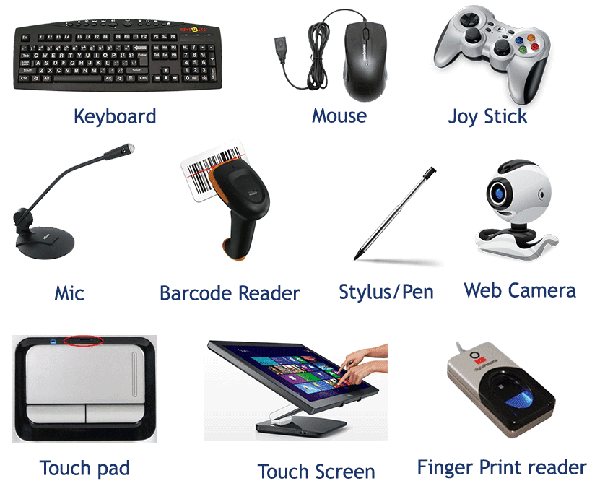
  • Input: It was a device or hardware that was used to provide and send a data into a processing device. And then later the data was processed into an information that you can use.

  • Process: This is basically the brain of computer. All of the information that you send, will be processed here. There are three important elements in here, Primary Storage, Arithmatic Logic Unit, and Main Memory. I will them explain later.

  • Output: is a device that was used by CPU to display the result of a data that was translate by the processing device. If you look closely, you should notice that most of output device was located outside the computer.

  • Storage: The last is storage, just like it's name storage was a device to store all of your data and files in your computer. The most basic storage device is memory and there are two kind of memory Random Access Memory (RAM) and Read Only Memory (ROM).

Software, the second one should be software. Or known as application. Software is basicaly a collection of electronic data that was stored and organized by the computer. The data that was stored can be a program or instruction that will run or execute a command. And software is the one that was used by computer to execute that command. The only difference between hardware and software, is that you can touch a hardware. And software can't (Unless you have a touch screen computer of course). And just like hardware, software can be divided into:

  • Freeware: is the type of software that you can use as long as you want and of course you didn't have to pay to own the software. There are no such thing called limited time in freeware, and it was usually donated to the communities. This communities have a rights to develop and control the freeware product. They can also give the software to the developer, if the developer was no longer continue the development. They will give the source code to the other developer.

  • Shareware: is another type of software that didn't take your money, or in other words free. It was almost like a freeware, You can get shareware at no cost. But there's a requirement for it, you can't use it to the fullest. That means there will be certain limitations on features like availabity, function, and comfort that can be fully utilized. People called it trialware because of that, the developer use shareware as a tool for advertising. So it's just like video game, there's a demo version (promotional) and full version (the real one). Shareware is just like the demo version of a full version software.

  • Firmware: is a software that was stored in Read Only Memory (ROM), firmware can't be change even if there are no electricity. What about the place where it was stored in ROM? It can't be change too, but it can be modified depends on the type of the ROM like EEPROM and Flash Rom.

  • Commercial Software: is a software for commercial purposes that can be bought at distributor, developer, and other software developer partner. The user who bought that software can't redistribute or reshare the software without permission, because it was protected by law and you can go to jail if you did that. One of the example of commercial software is Corel Draw, Adobe Photoshop, Microsoft Visual Basic NET, etc.

  • Free Software: is a software where you can do anything you want. You can bought it for free, change the source code, and distributed the software. It was not protected by law because it was open for everyone, you can even sell the free software that you have changed and make some profit from it. If you still confused, just imagine a person draw a straight line in a paper, then that person give you the drawing. And then you change or modified the straight line into any drawing. After that you sold it, and get some money.

  • Open Source Software: is a software where you can changed, learn, upgrade, and distributed the source code. It was open for a community or a group of developer to change the code. Because open source software was built for that purposes, sometimes only a programmer or a person that know programming that own this kind of software.

  • Malware: or malicious software is a type of software that can harm your computer. Malware can be very destructive, it can delete all of your important files, slowing down or decreasing your computer performance, and even kill your computer. There are so many types of malware like trojan horse, adware, worm, rootkit, crimeware, etc.

Brainware, last but not least is brainware. It was not a cpu nor a processor, but it's you the user. Many people sometimes mistaken brainware as the important part of the computer, but actually brainware is the person who use the computer like programmer, netter, and many else. Brainware is the part of holy trinity of the computer world, software can't work without hardware and hardware should be operated by brainware. If there's one missing the computer will not be working.


Hardware Components

There are so many components inside in the computer and each of them have it's own function. It's just like a transformers, there are lots of parts or components inside and you will be confuse if I mention them all. So for the last part of this article, I'm gonna mention some of the hardware components, and put them according to their type like input, process, storage, and output (sorry if there are bad grammar).

Input

Input Devices

1. Mouse, is one of the component that was very important. It was use for interacting with a monitor, you need this to click everything that you want to click on your computer. And almost every computer need it, especially if you are good at design graphic and a gamer too. There are several types of mouse, serial type mouse, PS/2 mouse, scroll mouse, and the one that everybody use; optical mouse.

2. Keyboard, what's the first thing that come to your mind when you hear the word computer? Yes, keyboard. It begin from typewriter, and from there keyboard become more advanced. Just like it's previous ancestor, there are lots of button in keyboard. From function button (F1...F12), letter button, numbers, etc. And you will need it for writing or typing something in your computer.

3. Scanner, another input device comes in third place. If you are an illustrator or maybe you are working for a prson who make a comic book, the you must be familiar with this device. Just like it's name, scanner is use for scanning a drawing from a paper and then the scanner put the drawing that you just scan in the computer.

Process

Processing Devices

1. Processor, the first and the obvious one is processor. All of data from input device was sent and then translate it by this device. Processor have two important role in a computer, as Arithmatic Logic Unit (the center of all mathematic calculations), and Memory Unit (store all the functions that was executed by the processor).

2. Motherboard, is like a big town of circuit with processor and a lot of slot (like IDE, PCI, FDD, etc) as it's building. Yes, this is where you put most of the computer components. And like I've said before, motherboard have a lot of slots and some extra slot for card/adapters. There are lots of thing that you can find in motherboard like BIOS, memory, CPU, mass-storage interface, serial ports, expansion slots, and controller.

3. Sound Card, is an expansion card that for producing a sound that will connected to a speaker. Sound card is available in every computer, and computer doesn't really need sound card to produce a sound. Usually sound card was attached in motherboard. But if you want a better sound quality, you may want to bought a separate sound card and put it in PCI slot.

Output

Output Devices

1. Monitor, or people called it computer screen. It was the most important thing that you'll need if you want to have a computer. Monitor is used to display a data and information that was processed by a computer in a form of a picture. There are two types of monitor that you can find, CRT or Cathode Ray Tube (ask your parents if you didn't know) and LCD or Liquid Crystal Display (The slim version of CRT).

2. Printer, is used to display the result of a data that was processed by computer in a form of writing or picture that was printed in a paper. Today there are so many types of printer like Dot Matrix (It use carbon tape to print on paper), Inkjet (It use ink of course), Laser (The best printer type).

3. Speaker, is a device that conects to a computer (and television too) to generate sound.The signal used to produce sound that comes from a computer speaker is created by the computer's sound card. To be simple, sound card is the processing device and speaker is the output.

Storage

Storage Devices

1. USB Flash Disk, the most popular and most used device in the world. Almost every people used it, why? Because of course it was easy to use and can store data up to 128 GB, cheap (the most important thing), can delete and store your data easily, plug and play and many else.

2. Hard Disk Drive, or HDD is a storage device made from a rigid material that shaped like a disc. It was cover in magnetic oxide with huge storage capacity (up to 1 terra byte!). This device can be found in almost every CPU that you can find. And of course there are two types of HDD, PATA and SATA (the new and most used by today's computer).

3. Memory, the basic strorage device. Just like every storage device, it was used for store the data and the result of output device. Memory was made in a serial location or cells, one cell can store one word. Computer memory is divided into two types Primary Memory (like ROM and RAM), and Secondary Memory (disc, compact disc, and hardisk).


Technology is probably the greatest achievement in our life, with times passed by. Technology become more advanced. Just like human that needs air to breath, gadgets and machine needs a component or hardware in order to be working. Because of the gadgets and machines our job and tasks become easier, our house become safer, and we also can meet another person in another country. All of that will only be a dream if there are no components or hardware inside it. 

14 October 2017

When Is The Right Time To Upgrade Your VGA Card?

When Is The Right Time To Upgrade Your VGA Card?

Video Graphic Array or VGA is one of the component that you will found on your PC. The first VGA card was made in 1981 by IBM, by the name of IBM PC Video Card. It was still called MDA (Monochrome Display Adapter) at that time. And can only operate for text mode with 80 columns of 25 lines (80 × 25), it have 4KB of video memory and supports 1 color only. After that come so many graphic cards like ATI, Cirrus Logic, and S3. Now, graphic cards become more sophisticated and become a part that can not be separated from PC.

Just like I said before VGA Card is the most important thing in laptop and especially PC computer, sometimes a PC is judged from it's VGA Card, but what about the processor? The brain of a computer? It should the most important thing right? Wrong, if you have a great processor let's say Intel Core i7 but your computer's graphic is Intel HD Graphic. Then it's no use, it's like a lion with a head of a house cat. So it's important to upgrade your VGA Card to maximize your computer's performance, but the question is when?

Upgrade your VGA Card is like writing an article, you should know the right time to publish your article in order to get more viewers or readers. If you bought a VGA Card and replace your old VGA in the wrong time, then you just waste your money. Because why did you need a great VGA if you only use your PC for browsing and writing? Well if you didn't want to lose your money, just read this article.

When Is The Right Time To Upgrade Your VGA Card?

1. When You Become An Animator

An activity like rendering an animation will need a great graphic resources. Using a medium or low-medium VGA Card will not do the job, you just gonna torture your computer especially your processor. Because animation especially the 3D one need a lot of time, space, and power to rendered it.

Did you know Lord of The Rings? LOTR movie have a lot of sequel and all animation in that movie takes 3-4 years to rendered! So imagine what time it takes to rendered a 15 minute animation. So you will need a powerful VGA Card to rendered an animation.


2. When You Have a Lot of Money

Most of today's VGA Cards like Nvidia, AMD, etc are expensive. No offense but it's not recommended for a poor guy. So try to use a low-end or medium PC and be happy with it. Anyway, with the increasingly sophisticated technology owned by today's VGA Card, the price is also becoming increasingly "sophisticated."

Most VGA Card prices are around $200-$400, and that was just the VGA Card. Not to mention the processor, cooling fan or maybe liquid cooler, motherboard, CPU casing, and many other. So be careful.

Read Also: How To Clean Your Computer

3. When Your Computer Have A Great Specifications


A great VGA Card must be balanced with other equally good components. If you have a good VGA Card like Geforce GTX 580 for example but your processor is still entry level like AMD Athlon II X2 2,6ghz. The VGA Card will not be able to release the optimal performance, PC geek called it bottleneck (Search in Google for details).

So VGA Card and processor is a unity that can't be separated. If you want to buy a good VGA Card, you should also bought a good processor for a maximum performance.


4. When You Decided to Become A Gamer

Playing a video game is almost like making an animation. It takes a lot of hard work for the VGA Card to rendered all of that 3D. But the difference is that in video games, you're just playing it and in the animation, you are making it. So clearly that playing video games does not require much power from the VGA Card.

It used to be like that, But now it's different. Most of today's video games have a really great graphic, so you will need a rally good and really expensive VGA Card.


5. When You Want To Watch A Movie in Detail

If you didn't have any time beside watching movie all day long, then you should bought a new VGA Card. Why? Because, believe it or not the better the graphics card, the better the quality of the movie you watch on your PC. But of course you should bought a good monitor for a great experience.

Buying a VGA Card is very important, but keeping your purse alive is important too. So please if you didn't have any money just try not to play a video games that have a next-gen graphic, or try to watch a movie on your television. And that's all my tips for choosing the right time to buy a VGA Card, I hope this article helps you. 

19 July 2017

What Is CGI And How Does It Work?

What Is CGI And How Does It Work?

If you like a big budget Hollywood movie, then this one is for you. You've probably heard about CGI so many time and just like you know, Hollywood movie use a lot of CGI and it was awesome. Sometimes, you can't tell the difference between the real one and the CGI. But did you ever stop and think what is CGI exactly? Who invented it? and mostly, how does it work? We will get there.

But first, did you know what CGI stands for? According to Wikipedia, CGI stands for Computer-Generated Imagery. So that means all of the 3D animation that you see on the movie, was made by computer. CGI was used for everything not only a movie, but it was also used in a Video Game, Commercial, Television Show, Animation, etc. In Video Game, CGI technology used at the cut scene and trailer. But in movie, CGI is mostly used for create a fantasy character like elf, dwarf,etc. And also for create a monster like in Pacific Rim or giant robot like in Transformers. But some movie, use CGI to make a superhero suit like Iron Man.

Well if we are talking about CGI, it's never far from the animation world. In fact, today's cartoon also used CGI to smooth the character movement. The first animation was produced in 1901 and created by a man named Walter Disney. He build a famous animation company called Walt Disney, at first Walt Disney is not so popular. But because of the Walter Disney's persistence, Disney become more and more famous. And because of that, many people try to do the same thing. So many animation or cartoon began to popping up like Tom and Jerry, Looney Tunes, The Simpsons, etc. And finally, in June 1976 CGI animation was invented. Since then, CGI become more sophisticated and look like it was real.

How Does It Work?

There are two type of CGI, 2D and 3D. Just like I said before, 2D CGI is used in cartoon while 3D CGI is used in today's movie. They used it to create objects with real shapes, lighting, textures, even the object can move as if were alive. So many applications that you can use to make CGI, like 3DS Max, Blender, Light Wave 3D, Maya, and Autodesk Softimage.

Even though the CGI was invented in 1976, CGI has been used in the movie Westworld that came out in 1973. But it was only 2D, so the CGI isn't very good and not as sophisticated as now. And it looks like an ordinary animation. Take a look at this picture, if you want to know how CGI works.

Twilight

Twilight
There's no way Kristen Stewart is petting a real giant wolf. They make a wolf on the computer, then replace the person with the wolf they had made earlier. If  that was a real wolf, She will be dead by now. Well, at least that guy is having the best time of his life.


Doctor Strange

Doctor Strange
As you can see, the portal that Doctor Strange made was actually a giant circle made from neon lights (or maybe that was a hulahoop). Basically they just replace the giant neon circle with a portal and then add some effect to make it real.


Guardians Of The Galaxy

Guardians Of The Galaxy
This scene is the same with the scene in Twilight movie earlier. They replaced that poor guy with a talking racoon. That guy will never sleep well at night.


Man Of Steel

Man Of Steel
In this movie, the superman is not really flying. As you can see here, that guy is pretending like what every normal actor do. They just add a background and wind effect to his cape. If he was really flying, CIA office will be busy right now.


Iron Man

Iron Man
Like every superheroes movie, the suit in that Tony Stark had is just a CGI. In real life that guy is just wearing a special shirt and the only one that real was the helmet.

And that is how CGI works, with the technology that keep growing. I'm pretty sure that real actors will not be needed in the future. Every actors that we see in the movie are animation, and the only thing that was real is the film crew. 

08 July 2017

How To Eliminate Malware From Your Computer

Malware

Last time I already give you an article about how to eliminate spyware. And this time, I'm going too give the same article. But, in this article, we're gonna talking about how to remove malicious software or malware from your computer. 

Sometimes virus can be dangerous for your computer. You can loss some of your files or maybe worse, you can't open your application or data. But malware in the other hand, is far more scary. Your computer can be infected by malware, if you try download or install an application that has been cracked. Sometime they add a malicious application inside an application that you want to download. So that's why you better buy the application that you want to download from the developer itself. But still, you have to be careful when you are about download something on the internet.

Anyway without further ado, let's just go with how to eliminate a malicious software from your computer. But before that, I'm just gonna remind you that I only give you how to eliminate malware for windows only.

Use Offline Scanner
Did you know that windows 10 have a tool that allow you to eliminate malware? Yes, and it's called Windows Defender Offline. It's called offline because Windows Defender doing scanning outside of Windows. So the process of scanning and cleaning the malware is done before you go into Windows.

Well, It's easy to run it. Just go to Settings> Update & Security> Windows Defender> scroll down and select Scan Offline. After that Windows 10 will automatically restart and offline scanning process will start. The process will last 15 - 20 minutes and automatically enter Windows once the entire process is complete.

Read Also: How To Deal With Ransomware WannaCry Easily

Update Your Anti Virus
This is the basic thing you should do, always update you anti virus definition. Otherwise, your computer will be vulnerable to virus or malware attack. Because just like the technology that always evolving, computer virus and malware will always evolved and become more dangerous.

In that case, you should evolve your anti virus by updating it. To do this, you will need an anti virus. And then open your anti virus, find the update button and click it. That way, you will be protected against all of the virus and malware that will attack your computer.

Clean The Temporary Files
Temporary files, including cache and cookies on the browser often become the nesting place of malware. For that, clean the temporary file on the browser, as well as windows (including the recycle bin) if you want to remove malware from your computer. To delete temporary files in windows, go to RUN then type % temp%. Delete all the contents of the temporary file.

Then remove the contents of the recycle bin, and then right click on the recycle bin icon on the desktop and select empty recycle bin. To delete temporary files in the Chrome browser, go to history, click menu and then select the option to delete browsing data. Check all options to delete all data.

Delete / Reset System Restore
Windows also has a System restore feature, which is actually very useful if there is a problem with the system. With system restore we can restore the system back like when point restore point in save. But unfortunately system restore is also often used as the safe house for malware.

I personally prefer to turn off all system restore. To reset system restore is quite easy, you just need to turn off system restore then turn off computer. After that restart the system restore, then the previously saved file system has been removed and replaced with the latest one.

Reinstall Your Computer
This is the last way and probably the most powerful way to remove malware from your computer. With a note, other partitions besides file system must also be scanned first, so it will not infect your computer system again. But too often re-install the OS also gives a bad impact, so you should be careful here.

So it's all up to you. If you are not careful enough, you will break your computer and probably lose all of your data and files. And just for your information, Most malware attacks the Windows OS, while other OS including Linux is very rarely attacked because of its open source nature that makes linux has a pretty tough security system. So there is no harm in switching to the program and Open Source Operating System. Or if you didn't like linux, you can use Apple Mac Computer that never attacked by virus.

06 June 2017

Apple iMac Pro: Specifications And Release Date

Apple iMac Pro: Specifications And Release Date

Apple, the biggest technology company after Microsoft just released their newest iMac called iMac Pro. Yes there's a word "Pro" in it, so you know that this computer is not a joke. Apple says that this is the most powerful mac ever, but just how powerful is this computer? Well, let's find out.

After the death Steve Jobs, Apple have no significant development. I mean just look at all of the iPhone version, from first to the newest. There's not much change, except for the size of the screen. They just didn't have any progress whatsoever. But then they released the most controversial Macbook ever, with a new touchbar and a new price. Well, what happen? Everybody makes fun of it, people didn't like it. And finally, they released  the new computer. It's like they want to show that Apple still care about PC and they want to tell the world that Apple still in the game. 

iMac Pro

In this newest iMac version, Apple promises high-quality performance on the new series. It is specifically intended for professionals as a device capable of supporting all kinds of work. From the processors, the iMac Pro can have processors up to 22 teraflops. Apple also offers three processor variants on the iMac Pro which is 8-core, 10-core, up to 18-core Xeon Processor. And for internal storage, iMac Pro provides a very large space with a 4TB SSD, with up to 128GB of ECC memory. With 5K display and Radeon Pro Vega 56 graphic processor with 8GB of HBM2 memory, this supercomputer supports higher frame rates for VR, real-time 3D rendering, more lifelike special effects, and gameplay at max settings. So you can play a next-gen video games, without having a low frame rates problem.

Specifications

With all of that spec, iMac Pro will comes on the market in june 7 2017 at $5000. A very high price for a very powerful computer. So, are you interested?

16 May 2017

How To Deal With Ransomware Wannacry Easily

How To Deal With Ransomware Wannacry Easily

Now the world is surprised by the ransomware attack called WannaCry. This ransomware, attacked so many countries and causing a billion of dollars of loss. There are so many people, that tried to fight back, but some people decide to give their money in order to save their precious files. But before you do anything stupid, you should take a look at this one.

There are so many ways to fight the ransomware attack. And today I'm going to give you the easy way. But before we start, did you know what is WannaCry and how does it worked? WannaCry (wcry) or also known as Wanna Decryptor is a specific ransomware program that locks all data on a computer system and lets the victim have only two files: instructions on what to do next and the Wanna Decryptor program itself.

When the program is opened, the computer will notify the victim that their files have been encrypted, and give them a deadline to pay, warning that their files will be deleted. The attacker demands the payment of Bitcoin, gives instructions on how to buy it, and gives the Bitcoin address to send.

How To Deal With WannaCry Easily
But before we go any further, I'm just going to tell you that until the second this article was written there is no way to decrypt WannaCry. Or simply, there is no way to save your data.

This method is more intended to remove the virus, then re-use the infected computer. Here's how to solve WannaCry's ransomware. There are two ways, here it is ...

1. Format and Reinstall Windows
Windows 10

Let's start the easy way first shall we? The first way is to format and reinstall your Windows. This way is the most effective and recommended for a person that doesn't have a patient. Why? Because all your data is encrypted and can not be saved, so just delete it. And after that reinstall, so your computer performance feels new. The virus is gone, and the computer feels like new. 

2. Eliminated The WannaCry Virus
Antivirus

The second way, is person that didn't want to lose their data or files. But I do not recommend this way. Why? Because first, it was complicated. And second there is not necessarily a way of decrypting or saving it.

But if you still want it and hope that someday your data can be saved, here's the steps:
  • Unplug the infected computer hard disk.
  • Attach the infected hard disk with HDD dock or HDD enclosure. 
  • Connect to another computer with already installed antivirus updates 
  • Perform a scan using the latest antivirus. 
  • Restore the detached HDD to the computer.
  • Then boot Windows as usual.
You can also remove the virus manually, this is not recommended for a newbie:
  • Boot into "Safe Mode".
  • Press "Ctrl + Shift + Esc". On the "Processes" tab look for suspicious software, usually using high RAM resouce and CPU even in idle position. If found, right-click and "End Task".
  • Click the "Start Up" tab, then "Disable" any software you do not recognize.
  • Press "Win + R", then type "Regedit". Press "Ctrl + F", then look for "Ransom.CryptXXX" or "WannaCry", deleted it, if you found it straight away.
  • Last but not least is to check the following folders "% AppData%", "% LocalAppData%", "% ProgramData%", "% WinDir%", "% Temp%". If a strange or unfamiliar file is found, just delete it.
There are still no way to eliminated or decrypted the WannaCry Virus. But SensorsTechForum said that WannaCry uses an HTTP path to send a key. There is an assumption, that this key can be sniffed. Given HTTP the path is not encrypted. To do so can use WireShark software. But if you want to eliminated the WannaCry virus and save your files, then you should do the step above.

10 May 2017

How To Look Like A Hacker

Hacker

Hacker is a dangerous job, you can be the most wanted person on earth, if you are not careful enough. But despite of being the most dangerous job, Professional hacker is probably one of the dream job for today's generation. They just want to look different and unique.

To become a hacker, you need some serious skill in computer and stuff. If you are only use computer for gaming or writing an article that no one will ever read it in your pathetic blog (like me), than this job is not your for you. It takes a lot of time and dedication in order to become a successful hacker, all I want to say that being a hacker is not easy. But luckily, there are some simple tricks that you can do so you look like a hacker in front of your friends.

Just remember, I didn't teach you how to become a real hacker. I will told you how to become a real hacker in another article. But for now let's just have some fun on how to look like hacker in front of your friends:

1. Typing Like a Hacker
HackerTyper
One of the sites that could be considered unimportant, but can eliminate boredom is HackerTyper, suitable for you who want to look like you are writing a script style hackers. On this site, you just need to type anything and automatically a script like a hacker will appear on the screen. Want to try it out right away? You can visit HackerTyper site.

2. Change The Color Of CMD
Command Prompt
You can change the color of the CMD (Command Prompt) to look like a hacker in movies and wrote some scripts CMD-style hackers. How to change the color, font, and size in the CMD is to right click> Properties, then modify as you wish.

3. Track A Password
Google Chrome
Google Chrome has a feature called Save Password. This feature will store multiple passwords at login (if the user does save them). To access the feature, you can just type chrome: // settings / passwords in the address bar field.

4. Change The Password
Password
You can also change the password your friend wrote in the form of "stars" (asterisk) into plain writing. The trick, right click> inspect element> then change input type = "password" to input type = "text". The password will automatically be visible.

5. Make A Harmless Virus
From WikiHow
The way to look like the next hacker is to create a simple computer virus. One way to do it, is to make a shutdown virus. The workings of this simple computer virus is to force a friend or target computer to be shutdown (not a dangerous virus).

To do so, go to Notepad, and copy and paste the code below. Then save the file with the name ForceShutdown.bat and the file type is All files.

@echo off
Msg * I do not like you
Shutdown -c "Error! Your computer is forced to Shutdown!" -s


6. Disconnect Other People's Connection
WifiKill
The way it looks like any other hacker is to disconnect someone else's internet connection. You can disconnect their internet connection using WiFiKill application or Arcai software named Netcut. With the disconnection of the connection, of course the victim can not access the internet on the device he uses.

That is how to look like a hacker in front of your friends and especially looks cool in front of your crush. So try one of the steps above and have fun.

08 May 2017

How To Eliminate Spyware From Your Computer

How To Eliminate Spyware From Your Computer

When you are browsing on the internet,  is there often a 'pop-up' ad in your computer? If yes, that means your computer has been exposed to spyware. And it's kinda annoying, so before I'm going to tell you how to eliminate spyware. Did you know what spyware really is? Well, according to Wikipedia spyware is a software that aims to gather information about a person or organization without their knowledge, that may send such information to another entity without the consumer's consent, or that asserts control over a device without the consumer's knowledge.

"Spyware" is mostly classified into four types: adware, system monitors, tracking cookies, and trojans; examples of other notorious types include digital rights management capabilities that "phone home", keyloggers, rootkits, and web beacons. Recently, my computer was infected by spyware and when I try to scanned it with the antivirus. Nothing showed up, my antivirus says that my computer is fine. After trying so many ways to eliminated the spyware, I finally did it and here's how:

Install A Spyware Removal Software
There are so many spyware removal program out there. But what is the most effective program to remove spyware? After playing around with so many spyware removal programs that I can found on the internet, I finally found a good software that can remove all spyware on my computer. Hopefully, this can help you guys:
  1. The first software is SpyBot Search & Destroy. You can download it at http://www.safer-networking.org. Install this software and update its database by pressing the 'search for update' button. Press the 'Search for Problems' button and delete the program it finds. Reboot your computer.
  2. The second software is Ad-aware, created by Lava-Soft (http://www.lavasoftusa.com). Download the free version and install it on your computer. As before, first update the database and run it. Remove any programs it finds and reboot your computer
You should do all the steps above all over again, just to make sure the spyware is eliminated completely. And don't forget to update the database, at least once a week.
 
Be Careful To What You Are Downloading
If you often download a pirate software on the internet, you should be careful. Because there are so many software developer that often insert or put a harmful software that your antivirus can't detect. Some of the steps below may help to prevent this kind of problem from happening again:
  1. Be careful with the programs you install. Many downloadable programs like Kazaa, Imesh etc. Which installs other software that can make your computer slow and can even make your computer and crash.
  2. Update your computer with the patch provided by Microsoft. In Internet Explorer, go to Tools> Windows Update> Product Update and install all available security updates. It is important to update these security fixes regularly. Update also Java VM because many programs use it. 
  3. In Internet Explorer, click Tools> Internet Options> Security> Internet. Press the 'default' button and press 'OK'. Now press 'Custom Level'. For 'ActiveX', select 'prompt' for 'Download signed and unsigned ActiveX control'. Select 'disable' for 'Download unsigned ActiveX controls' and 'Initialize and script ActiveX control'.
If you are using the internet, you may be asked if there is software that will install on your computer. For websites that you already know and trust you can move them to 'Trusted Zone' in Internet option> security.
 
Update Your Antivirus
One of the main reason why your computer was infected by spyware, is because your Antivirus definition is outdated. This happened because viruses or spywares are evolving, so your outdated antivirus will be overwhelming and can't detect the virus or spyware. And to prevent something like this to happened, you should evolve your antivirus. Just simply open your Antivirus and click update. That way, you will be save from virus or spyware attack.
 
That is how I eliminate the spyware in my computer. If you are successfully eliminated the spyware and didn't want this to happened again, just make sure you didn't install a pirate software. How hard is it to just buy the software from the developer?